Wish lists your customers can share, vote on and send for a quote.
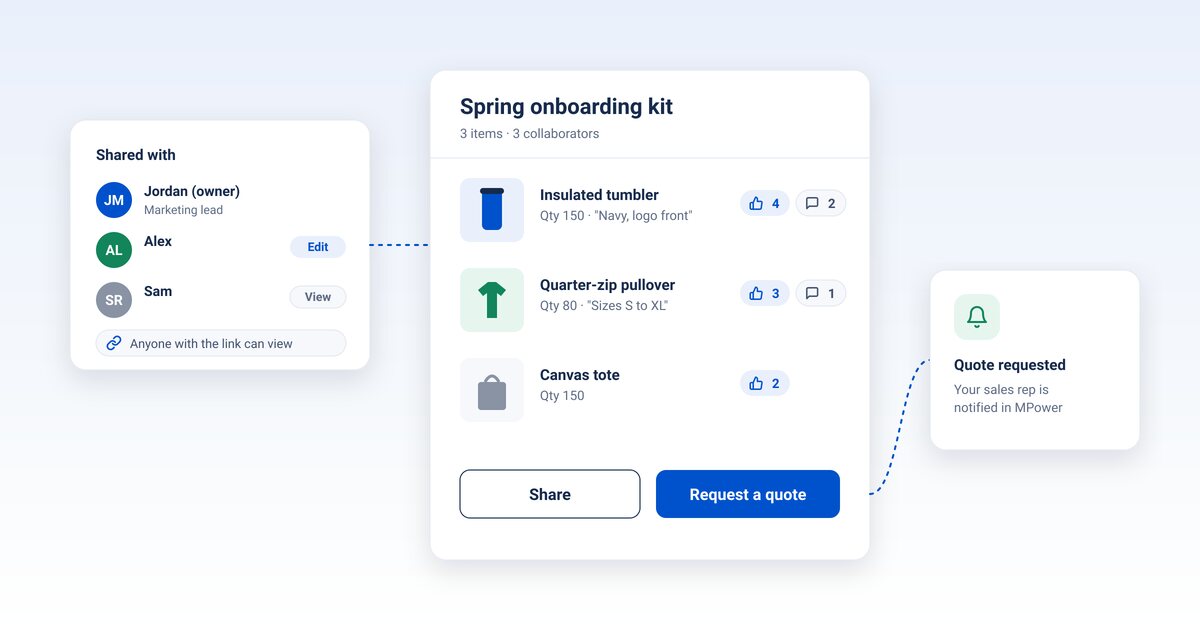
Most promo orders start long before anyone asks for a quote. Someone on your customer's team browses your store, sends a few product links to coworkers, collects opinions over email and finally sends you a spreadsheet. Customer Lists move that whole conversation onto your store, where you can see it.
The order before the order
Think about how a company picks swag for a new-hire kit. The office manager finds a tumbler she likes. Marketing wants a different color. Finance asks how many they need. By the time the request reaches your rep, it's a forwarded thread with three versions of the same idea and no quantities.
None of that back-and-forth happens where you can help. You can't suggest a better product, you can't see that the team already agreed on the quarter-zip, and you find out what they want only when they're ready to buy, or when they've quietly bought somewhere else.
What shoppers get
With Customer Lists, a shopper signs in to your store and saves products to named lists. They can pick an existing list or start a new one, like "Spring onboarding kit" or "Trade show 2027." Their lists live under My Account, so they're there the next time they sign in.
Sign in, then it saves
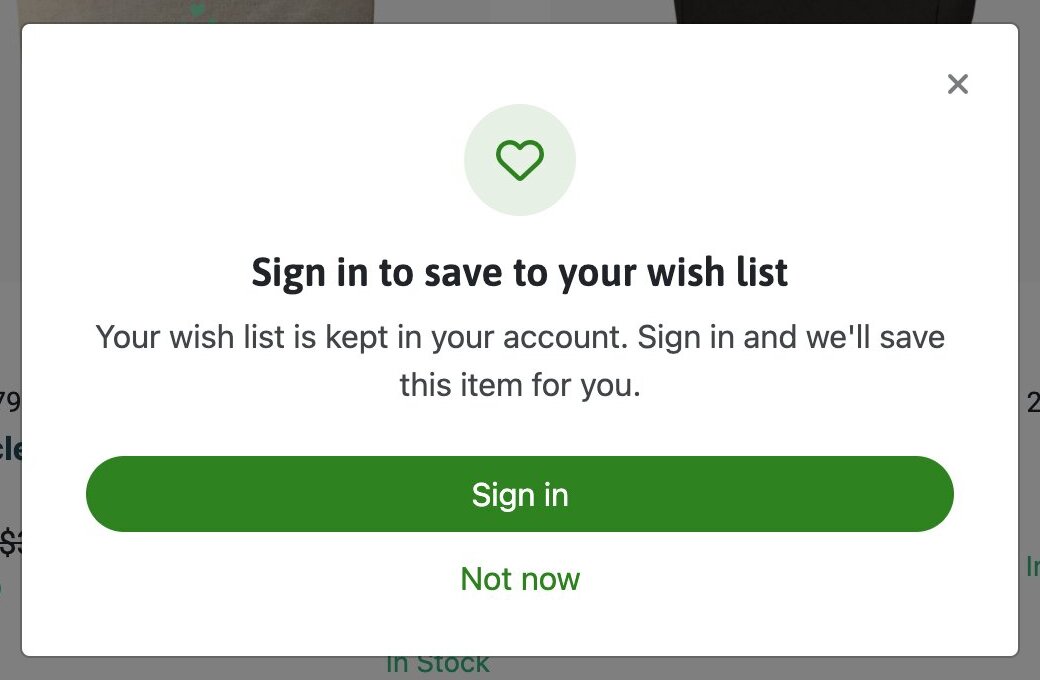
Every product card has a heart, and every product page has a Save to list button. A shopper who is not signed in sees a short prompt: Sign in to save to your wish list. Once they sign in, the item is saved automatically. With one list it goes straight there. With several lists, they pick.
The Save to list drawer
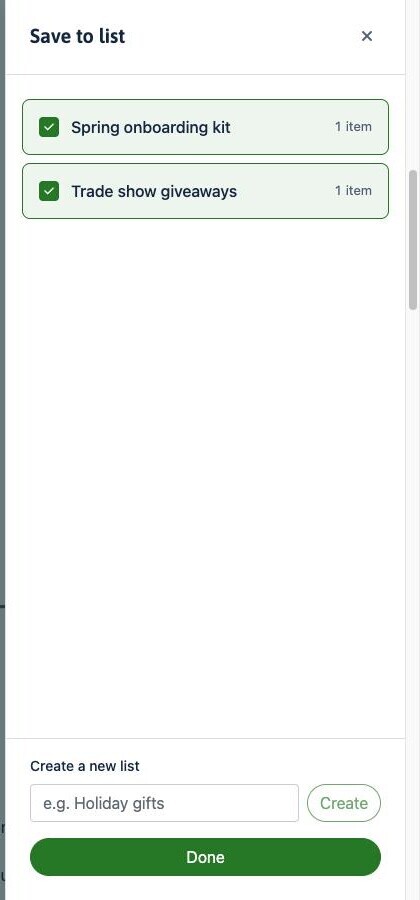
Signed-in shoppers get a drawer on the right side of the screen. It shows each of their lists with a checkbox and an item count, so one product can sit on more than one list. They can also create a new list right there, like Holiday gifts, then tap Done.
The list page
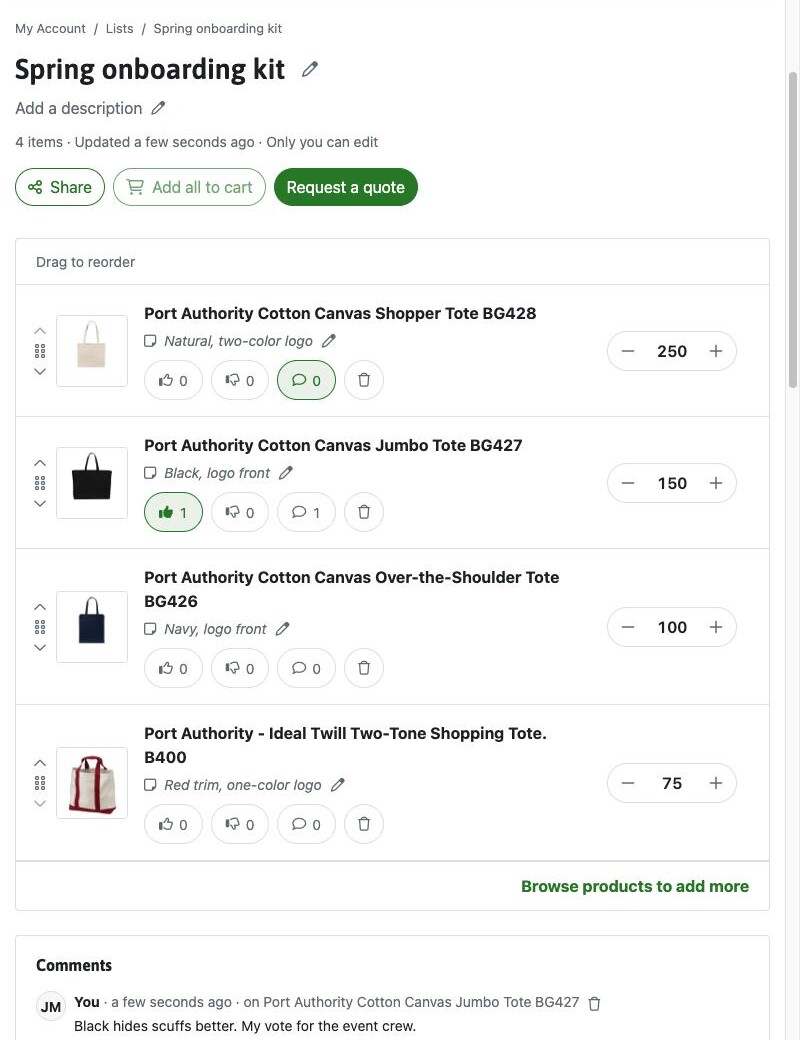
Under My Account, then Lists, each list has a name, description and item count, plus Share, Add all to cart and Request a quote. Items have a quantity, a note, thumbs up or down, comments and drag-to-reorder.

A separate list for each project, each with its own name and description.

Each item holds a quantity and a note, like "navy, logo front." Drag items to put the top picks first.

One link shows the list to anyone. People without an account can view it and react to items.

The owner invites teammates by email with view or edit access, and can remove them any time.

Thumbs up, thumbs down and comments on every item, so the group can see what has support.

When the list is ready, one click marks it as a quote request and notifies the rep.
What your team gets
Every list your customer makes shows up in MPower on the Lists tab of that customer. You see the items, quantities, notes, votes and comments, and whether a quote was requested. A badge on the tab tells you when a list has a new quote request or new comments.
Your rep doesn't have to keep checking, either. The customer's assigned rep gets a notification in MPower when a list is shared, a teammate is invited, someone comments, or a quote is requested. That's the moment to jump in: answer a question in the comments, add a product you'd recommend, or adjust a quantity right on their list.
A list that a whole team voted on is a better quote request than a forwarded email. The products are picked, the quantities are filled in, and the people who approve the purchase have already weighed in.
A typical list, start to finish
Jordan, a marketing lead at one of your clients, saves a tumbler, a quarter-zip and a tote to a list called "Spring onboarding kit." She invites Alex with edit access and her manager with view access. Alex bumps the pullover quantity to 80 and adds a note about sizes. The manager gives the tumbler a thumbs up and comments that navy matches the new brand colors. Jordan requests a quote. Your rep gets the notification, opens the list in MPower and has everything needed to price it.
No spreadsheet. No reply-all.
How to turn it on
Customer Lists are off until you switch them on for a store.
- Open your store in MPower and go to Configuration.
- Under Ordering & Checkout, tick Customer Wish Lists.
- Click Save Configuration.
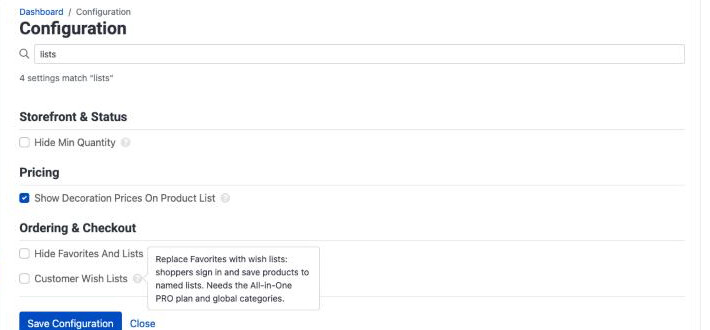
Customer Wish Lists replace Favorites on your store. They need the All-in-One PRO plan and a store that uses global categories.
Getting started
Customer Lists are included with the All-in-One PRO plan. If you're on PRO, see the Customer Lists guide for how sharing, collaborators and quote requests work. On another plan? Talk to us about upgrading.
See how Customer Lists work →
