Proofing & Approval
Get proofs approved in fewer rounds.
Send your customers a proof page on your own store. They compare versions, mark exactly what to change and sign off. You keep a timeline and a PDF record of every approval.
On the proof page
Everything a proof needs, in one link.
Your customer opens one link and has what they need to say yes, or to tell you exactly what to change.
Latest version first
Customers land on the newest proof. Earlier versions are one click away.
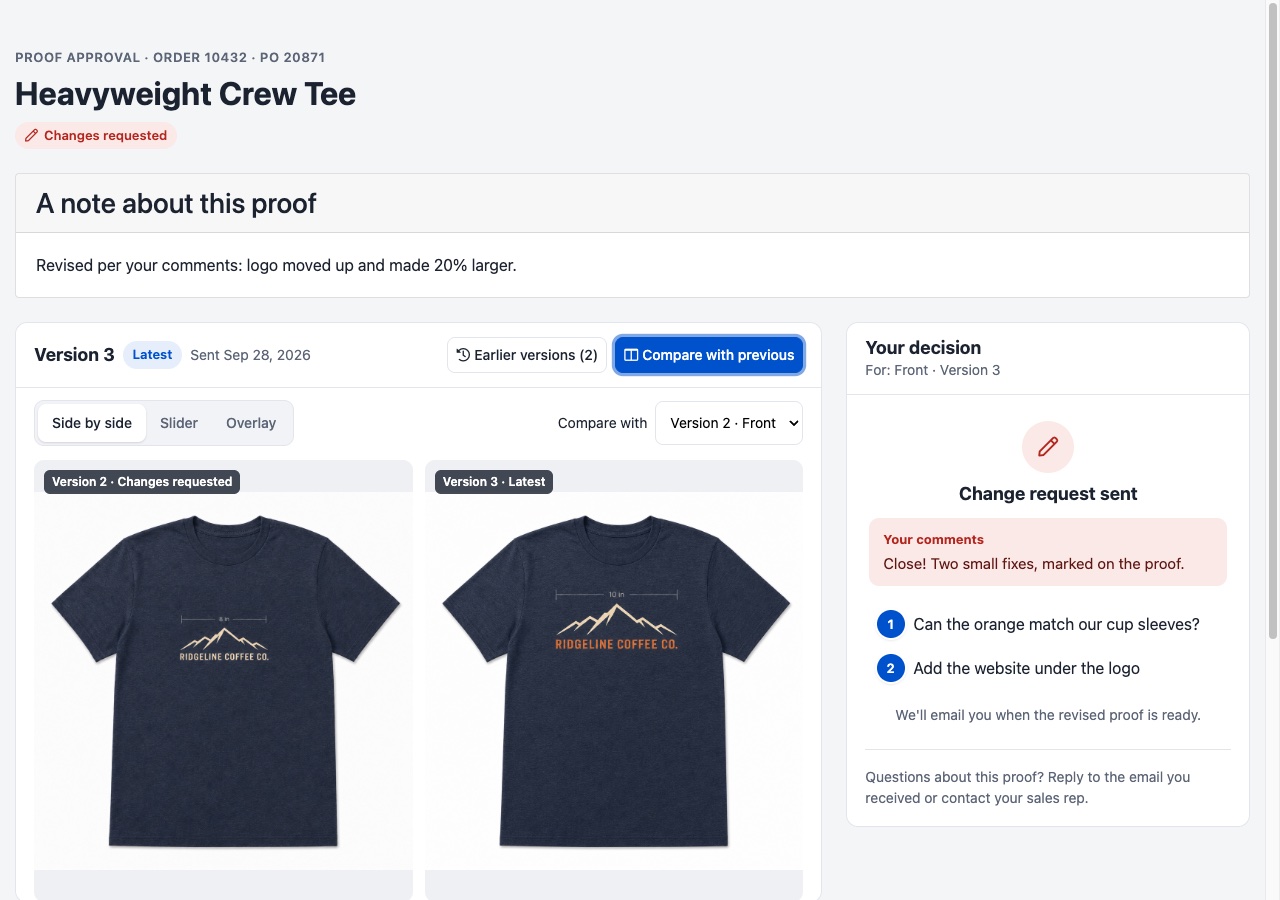
Compare with previous
Side by side, a swipe slider or an overlay. A logo that moved half an inch is easy to spot.
Mark the exact spot
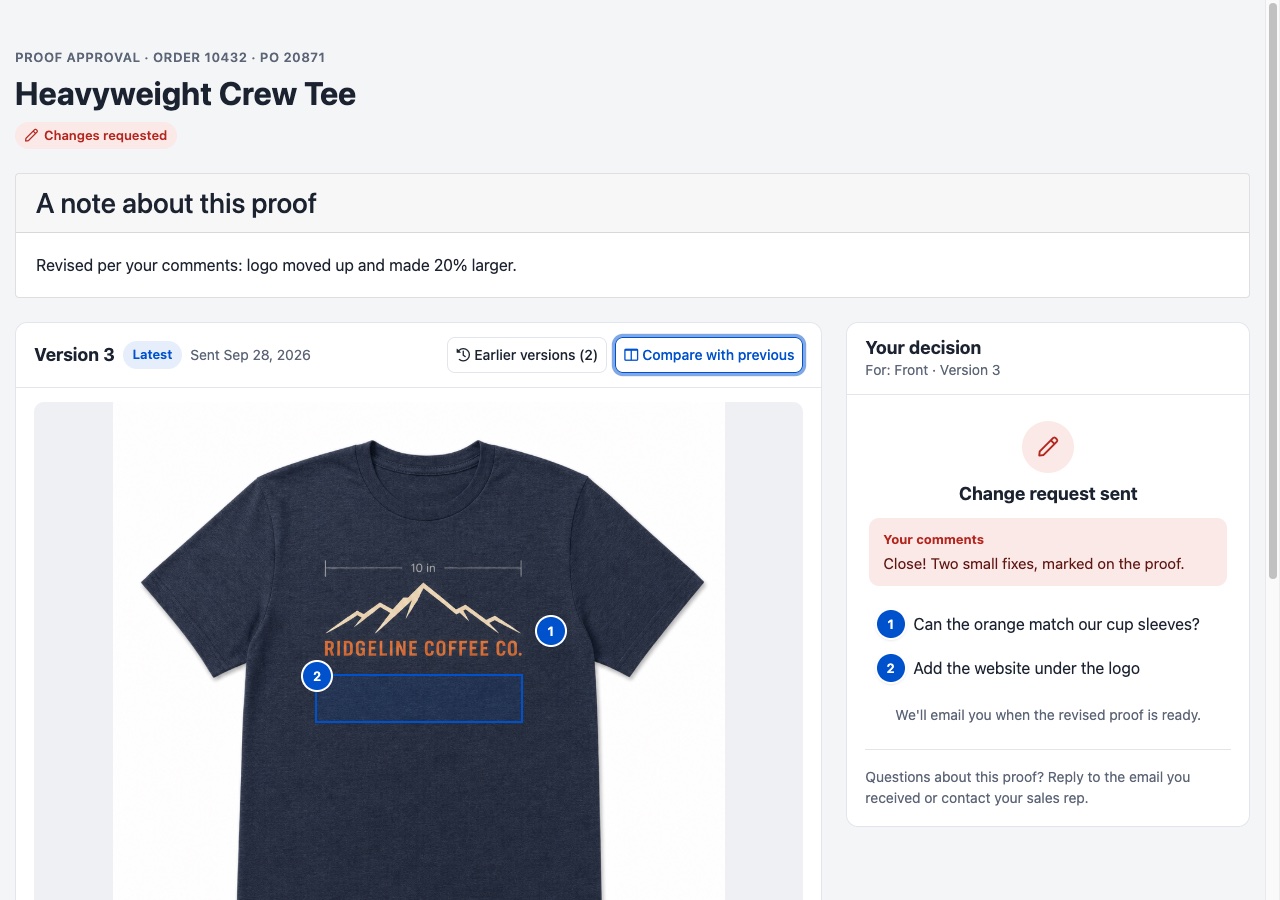
Customers drop numbered pins or drag boxes on the proof, each with its own comment.
Comments on every decision
Customers can comment when they approve. Declines need a comment, so every change request says what to change.
Your approval checklist
Add items like "Spelling checked" or "Colors confirmed." Customers tick each one before they can approve.
A note with every send
Tell the customer what changed in this version, right above the proof.
Approval history
Every sign-off, on the record.
Each purchase order keeps a timeline of its proofs: when you sent it, when the customer opened it, and who approved or declined, with their comment and checklist answers. When a customer says they never approved that color, download the one-page PDF.
Your brand, your store
A proof page your customers will take seriously.
The proof page runs on your MPower store, in your colors. It works on a phone, and customers don't need an account: the link in your proof email is all they need.
Small things your team will use every day.
Copy proof link
Grab a customer's proof link from the approval history to resend it or share it with a coworker.
Clearer email preview
Check the proof email before it goes out. The preview marks where your customer's proof link will go.
Full version history
Every version of every artwork on the PO, with the decisions made on each.
FAQ
Proofing questions, answered.
Do my customers need an account to approve a proof?
No. They open the link in your proof email. Their name and email are filled in, and they can edit them before they sign off.
Can a customer change their mind after approving?
Yes, until the order moves into production. After that, they contact their sales rep, and your team can still update the proof.
What's in the approval record?
A one-page PDF with the order and PO numbers, the products, the artwork versions, and every proof event: who, when, their comment and their checklist answers.
Can I require a checklist before approval?
Yes. Add up to eight items in your purchase order settings. Customers must tick every item before Approve unlocks. If you don't add any, customers approve without one.
How do customers compare versions?
On the proof page, "Compare with previous" shows the new version next to the last one. They can switch between side by side, a slider and an overlay, or pick any earlier version.
See it on your own orders.
Request a demoReady to run all of promo in one place?
See how MPower replaces your disconnected tools with one platform — from the first lead to the final shipment.
Thanks — you're on the list.
A product specialist will reach out within one business day to schedule your demo.
Download
Never miss a beat. Download our app and work on the go with all the same features as our desktop application.

