Gift cards on your stores, under your own name.
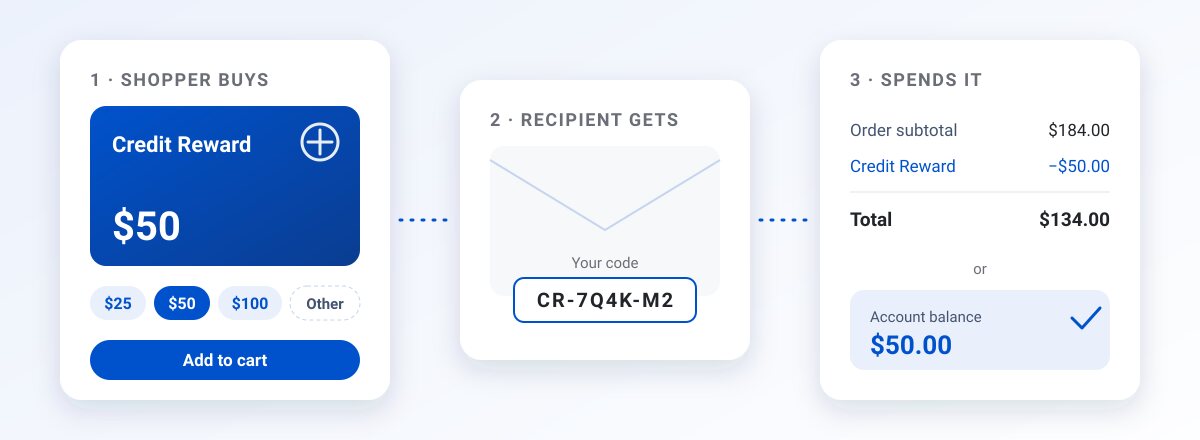
Your customers want to reward employees, thank clients and run incentive programs, and they don't want to pick swag for every person on the list. Your stores can now sell gift cards so the recipient picks for themselves.
Your name on the card
You decide what the card is called. Gift Card, Credit Reward, or anything that fits the program. Shoppers only ever see that name.
A gift card is sold like any other product. Set the amounts you want to offer, allow a custom amount, or do both. A buyer adds a card to the cart and checks out the way they always do.
What recipients get
Each recipient gets an email with their own code. There are two ways to use it:
- Enter the code at checkout to take the amount off the order.
- Add the code to their account balance and spend it over time, a little at a time.
So a $50 card does not have to be spent in one order. The balance stays on the account until it runs out.
What your team gets
Selling cards one at a time is fine for a birthday. Rewards programs need more, so there are tools for the team side:
- Bulk issue. Upload a spreadsheet of recipients and amounts. Good for rewards programs, events and sales incentives.
- Move balances from an old store. Issue codes for the balances customers already have, so nobody loses what they were owed.
- Adjust a balance. Change what a customer has left and add a reason note so the history makes sense later.
- One report for every code. Search by code, see its status and where it was used, export to CSV, and refund a batch of unused codes in one step.
A year-end thank-you, start to finish
Say a client wants to thank 40 people at the end of the year. Nobody wants to guess sizes or colors for 40 people. You set up a card called Team Bucks and upload a spreadsheet with each person's name, email and amount. Everyone gets an email with their own code.
Some enter it at checkout right away. Others add it to their account balance and shop when they're ready. A few weeks later you open the Gift Cards report, see which codes have been used and where, and export the list for the client. If some codes are still unused when the program ends, you can refund them as a batch.
The client gets a thank-you that people actually want. You get the merchandise orders.
MPower charges no order fee when a gift card is bought. Your plan's order fee applies once, when the card is spent on merchandise.
How to turn it on
Gift cards are off until you switch them on for a store.
- Open your store in MPower and go to Configuration.
- Check Gift cards.
- Click Save Configuration.
After that, codes, bulk issue and the report all live on the store's Gift Cards tab.
Getting started
Gift cards are part of the All-in-One PRO plan. For the details, see the Gift Cards page. On another plan? Talk to us about upgrading.
Talk to us about gift cards →
