Your order confirmation page can do more than say thanks
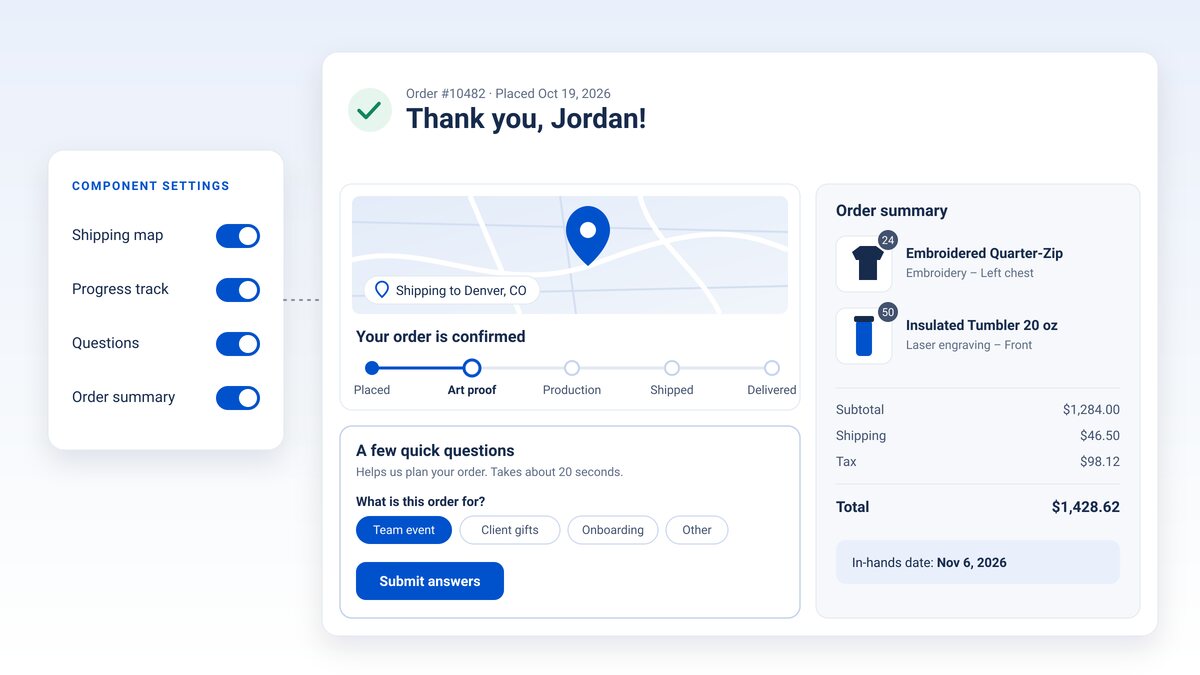
On most stores, the page buyers see right after they pay is an afterthought: a line of thanks and a link back to the catalog. It's also the one page every buyer lands on. Now you can put it to work.
Order Confirmation is a new page-builder component for MPower stores. It reads the order the buyer just placed and turns the confirmation page into a short recap: who ordered, where it's going, what happens next, and anything you still need to know.
What buyers see


Ask after they pay, not before
Checkout forms grow. Someone needs the event date, someone else wants to know how the buyer heard about you, and every new field is one more thing between a buyer and the Place Order button.
The questions card gives those nice-to-know questions a better home. Confirmation questions are ordinary order reference fields with one new setting, Where to ask. Set it to Confirmation page and the field moves off checkout and onto the page buyers see after they pay.
You can ask short text, long text, date, checkbox, multiple-choice and rating questions. Required fields and show-when rules work the same way they do at checkout. Buyers submit their answers once and can update them before they leave the page.
A simple rule of thumb: keep anything you can't fulfill the order without at checkout, and move the rest.
What it doesn't do
The progress track shows where the order stands when the buyer lands on the page: placed, then waiting on an art proof if the order is decorated, or in production if it isn't. It's a "here's what happens next" view, not live tracking.
The questions card doesn't take file uploads. Artwork and other attachments stay at checkout.
How to add it to your store
New stores created from an MPower store template include Order Confirmation at the top of the confirmation page. Existing stores don't have it yet, and adding it takes a few minutes:
- In MPower, go to Store Editor → Pages and open your store's order confirmation page.
- Add Order Confirmation from the Cart & Checkout components and drag it to the top. If the page already has its own thank-you message, remove it so buyers don't see two.
- In the component settings, choose which parts show and edit the questions title and subtitle.
- To ask questions, go to Store Editor → Carts, open a cart, add a reference field and set Where to ask to Confirmation page.
- Place a test order and look over the page you land on.
Would you rather we set it up? Send us a service request with your store's name and the questions you want to ask.

