Promotional product kits: one item to sell, a PO for every piece
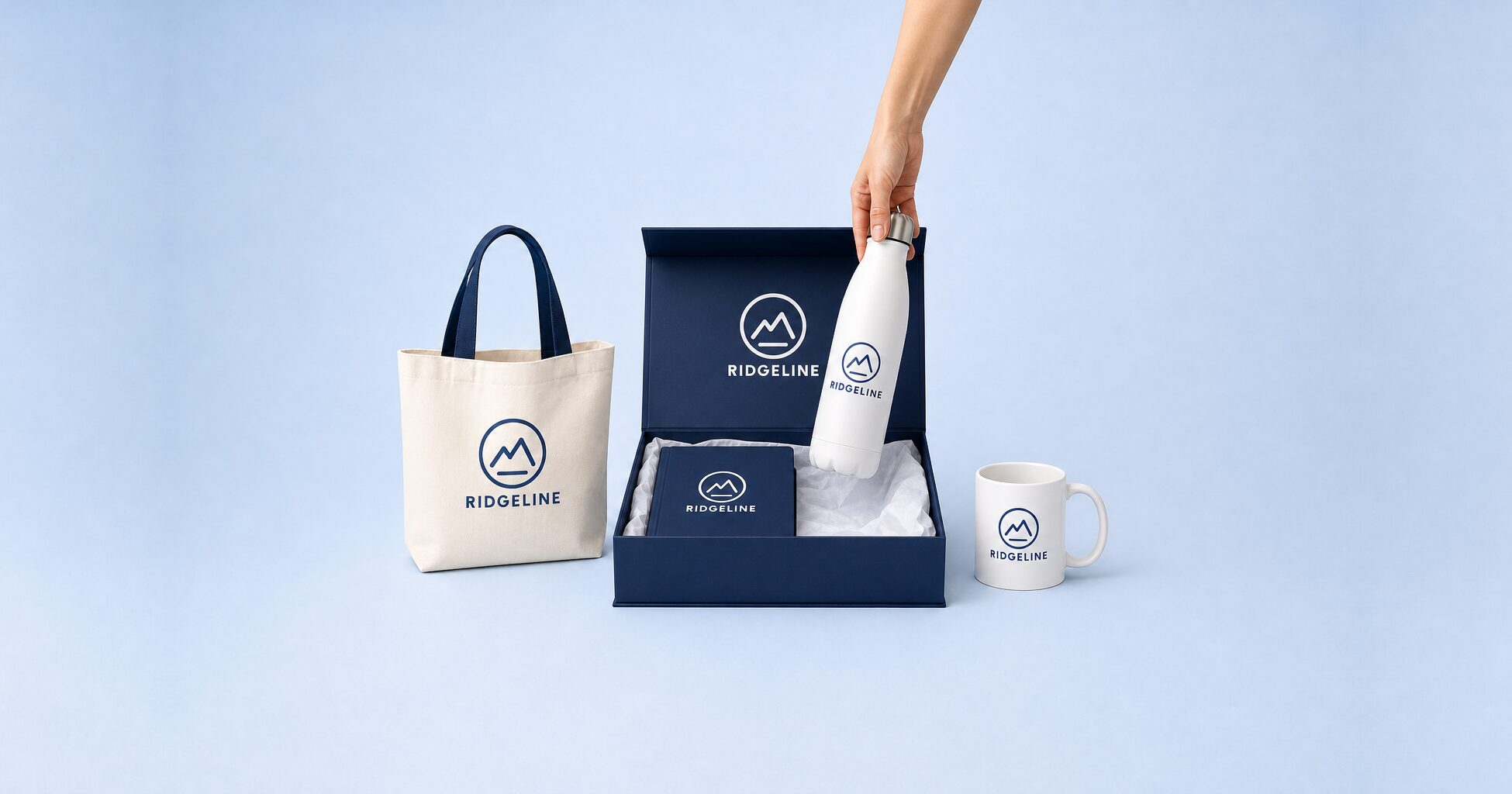
Promotional product kits look simple until the order lands. Take a welcome kit for new hires: an insulated bottle, a canvas tote and a notebook, each with the company logo. To your customer that’s one program item. To your team it’s usually three orders, three purchase orders and three proofs, split by hand. MPower now has kits for that. A kit is one product on your store, and MPower splits the order behind it. Kits are in early access, so we turn them on for your store when you ask.
Why promotional product kits turn into hand-splitting
Onboarding and welcome programs are the usual case: a few products, one logo, one buyer. The trouble starts after the customer clicks buy. Each piece in the kit has its own supplier, its own cost and its own artwork. Someone has to break the order apart, send each piece to the right supplier and chase a proof for each logo. Then they have to keep track of which bottle goes with which tote.
It gets worse when the customer asks where their kit is. The bottle’s proof is approved, the tote is waiting on artwork and the notebook already shipped. That picture usually lives in a spreadsheet, or in one person’s head.
How kits work in MPower
A kit is one product on your store, built from catalog products you already sell. Your customer sees a single kit page with one price and a Kit contents list. They pick a quantity and select Configure Kit.
Configure Kit walks them through the kit one piece at a time. At each step they choose color, size, decoration and artwork, but only the options you’ve opened up. Anything you fixed shows as plain text. You can also hide a piece from the customer, and its price still counts toward the kit price. The last step lists every visible piece with its choices and the total, and Add Kit to Cart puts the whole kit in the cart as one line.
Kits are not the Swag Box Builder, where customers assemble their own boxes from products you pick; a kit is a fixed set you define and sell as one product.
What happens behind the order
Your customer sees one line in the cart. Your team gets the same breakdown you’d have built by hand.

The storefront shows a single kit page with one price. The pieces are listed under Kit contents.

Customers choose color, size, decoration and artwork one piece at a time, and only where you allow it.

Each component becomes its own PO, with its own supplier, cost, proof and status.

Components from the same supplier go out as one PO, with one line per component.

Send components straight to the customer, to your address for assembly, or to a fulfillment facility.

Once all of a kit’s components share a status, the kit order takes it.

You get a single notification for each kit, not one for every component.

The kit price is the sum of its component prices, so there’s no separate kit price list.
In the welcome kit example, say the bottle comes from one supplier and the tote and notebook from another. You’d see three component POs linked to the kit. When you send them, the bottle’s supplier gets one PO and the other supplier gets one PO with two lines.
Proofs stay per piece too. You can request, approve or put on hold the proof for one component without touching the others. If you assemble the kit yourself or use a fulfillment facility, the components go there first and the finished kit ships to the customer afterward.
What early access means
Kits are new, so a few limits apply today. MPower staff turn kits on store by store. A store you create from a template or duplicate doesn’t inherit the setting, so ask again for the new one. Every kit has a fixed list of pieces, and a kit can’t contain another kit. Component prices don’t include decoration setup or run charges.
Get kits turned on for your store
Send us a note with your store’s name and we’ll turn kits on. Then create a product, set its type to Kit, add the catalog products it contains and choose which options your customers can change for each one. The kits page walks through the whole flow, including an example order.
See how kits work →
