Sales Teams: Report on Your Sales Floor the Way It Actually Works
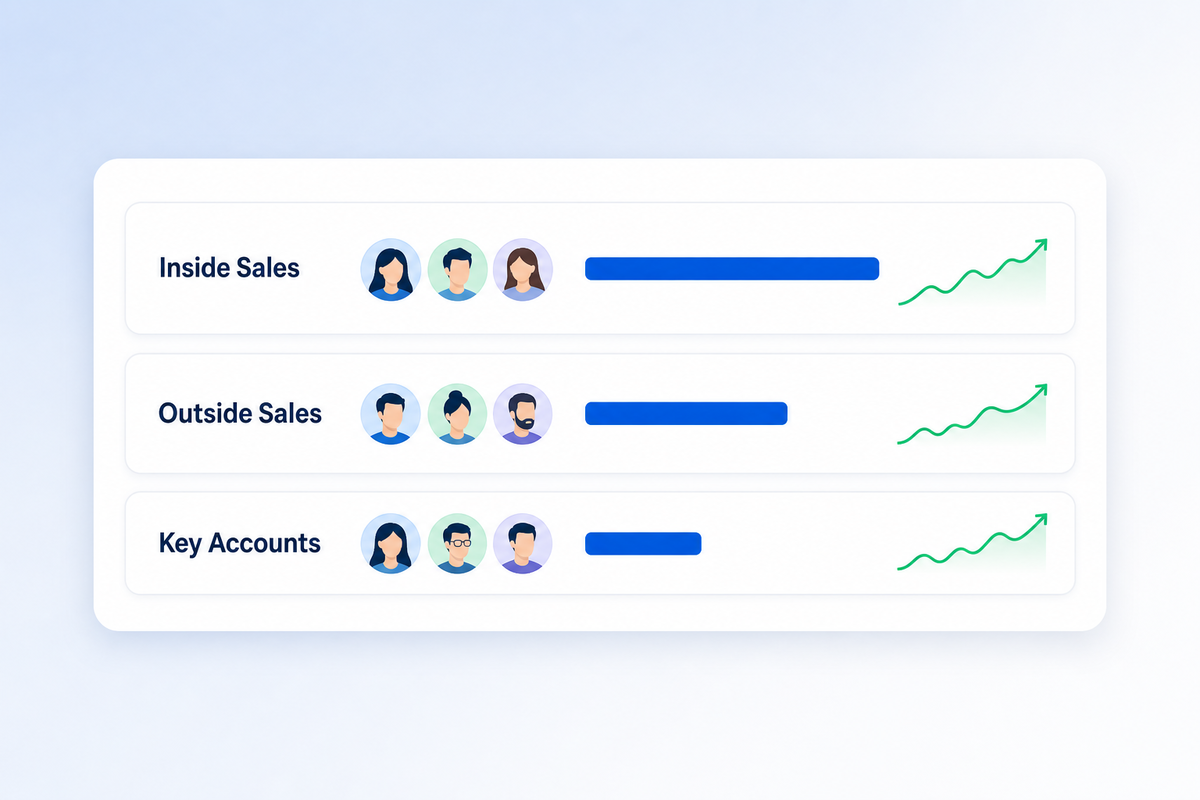
Ask most distributors how their inside team did last quarter and you'll get a pause, then a spreadsheet. The numbers exist. They're just sorted by person, or by job title, and neither of those is how the sales floor is actually organized. Sales Teams lets you tell MPower how your people really work together, and then reports on it that way.
Job titles aren't teams
Until now, the closest thing MPower had to a team was a user's role. That works until it doesn't. Two reps with the same title can sit on different teams. One rep can move from outside to inside sales without anything about their permissions changing. And because roles are about what someone is allowed to do, using them to group revenue meant every reorg was also a permissions change.
The result was predictable. Team totals got rebuilt by hand at the end of the month, and the hand-built number never quite matched the one in the system.
What Sales Teams does
Teams are now their own thing in MPower, separate from roles. You create them, you name them, and you decide who's on each one. From there, four things change:
- Every order is stamped with a team. When an order is recorded, MPower notes which team its sales rep was on at that moment.
- Dashboards split by team. The manager dashboard gets a Sales by team view and a team filter. The financials dashboard adds Team Performance, a per-team trend over time.
- Commissions report by team. A new Commissions by Team report sits under Reports → Finance.
- Teammates can cover for each other. If you turn it on, members of a team can view and work each other's orders.
Why stamping matters
The stamp is the part that makes the numbers trustworthy. Say a rep moves from Outside Sales to Inside Sales in May. Their January through April orders stay with Outside Sales, where the work was actually done. Only new orders follow them to Inside Sales. Last quarter's report looks the same next quarter as it did the day you ran it.
It also means reorganizing is cheap. Moving someone is a single field change on their user record. Nothing about their permissions has to move with them.
Two settings per team
Each team has two checkboxes, and both are optional.
Members can view and work each other's orders. Turn this on for teams that share a book of business. When one rep is out, a teammate can pick up the order instead of it waiting in a queue nobody else can see. Teams with this off keep order access exactly as it works today.
Team absorbs negative commission. Some teams carry the loss when an order lands below cost, and some don't. Setting it per team keeps that rule with the team instead of hiding it inside someone's role, where it's easy to change by accident.
Setting it up
It takes a few minutes:
- Open Users from the account menu and choose the Sales Teams tab.
- Click Add team, give it a name and a color, pick the settings you want, and save.
- Open each rep's user record and choose their team from the Team field.
Each rep belongs to one team at a time, so every order's revenue and commission is counted exactly once. When you reorganize, archive the old team instead of deleting it. Its history stays in your reports, and you can restore it later if you need to.
Who it's for
Sales Teams is built for distributors with more than a handful of reps: an inside team handling reorders and web stores, an outside team out meeting buyers, maybe a group dedicated to a few big accounts. If you've ever rebuilt a team total in a spreadsheet, it's for you.
See how Sales Teams works →
