Webhooks come to All-in-One PRO
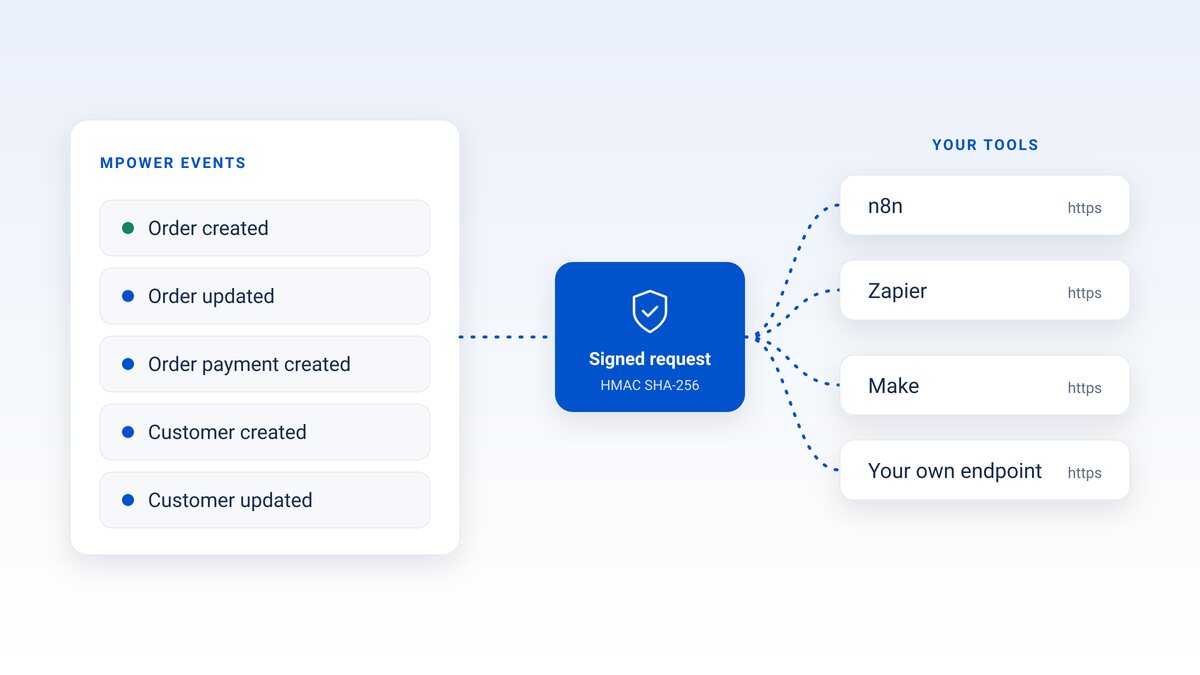
A lot of distributors run part of the business outside MPower: a Zapier zap that posts to the team chat, an n8n flow that fills in a spreadsheet, a small app a developer built. Until now, those tools had to keep asking MPower what changed. With webhooks, MPower tells them.
Webhooks are included in All-in-One PRO starting today. They live in a new Connections tab under My Distributor, next to API tokens and the AI connector.
What a webhook does
You pick an event and give MPower an https URL. Each time that event happens, MPower sends a signed request to that URL. You can choose from five events:
- Order created
- Order updated
- Order payment created
- Customer created
- Customer updated
Every request includes the event id, when it happened, the source and who made the change, so your workflow knows what happened and who did it.
What's in the Connections tab
All three live under My Distributor → Connections. Read the Connections guide.


https://mcp.mpowerpromo.com/mcp, then look up orders and customers in plain English.
Signed, and retried if something fails

X-MPower-Signature: sha256=<hmac> header. Check it with your signing secret to confirm the request came from MPower.

How to set one up
1. Open Connections. In MPower, go to My Distributor → Connections and choose Webhooks.
2. Pick an event. Order created, order updated, order payment created, customer created or customer updated.
3. Paste an https URL. Use the webhook URL from n8n, Zapier or Make, or an endpoint of your own.
4. Save the signing secret. Copy it when it appears. You won't see it again.
5. Check the signature on your side. Before your workflow acts on a request, verify its X-MPower-Signature header with your secret.
Full webhooks setup guide, with payload fields and signature checks →
Not on PRO yet?
On Starter or All-in-One, open My Distributor → Connections to see what PRO includes, with an Upgrade to All-in-One PRO button in the same tab. Or compare plans first.

