Checkout & Payments
Every way your buyers pay, in one checkout.
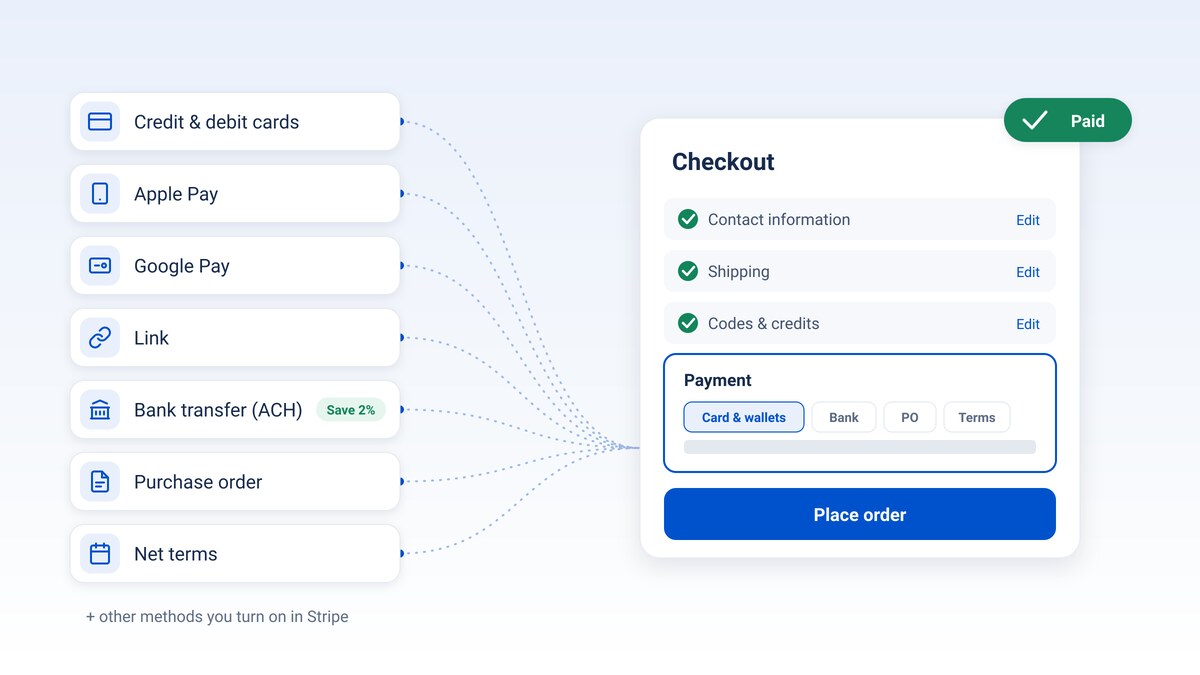
Cards, Apple Pay, Google Pay, bank transfers, purchase orders and net terms, all on one Payment step. Advanced Checkout runs on your own Stripe account, and you choose what each store offers.
Payment methods
Let buyers pay the way their company pays.
Turn on any mix per store. Card, wallet and bank payments run through your own Stripe account.
Cards and Link
Credit and debit cards, plus Link, Stripe's saved-details checkout.
Apple Pay and Google Pay
A tap on Safari and Apple devices, or on Chrome and Android. No card number to type.
Bank transfer (ACH)
Lower fees than cards. Add an optional discount and buyers see a "Save" badge.
Purchase order
Buyers upload their PO and submit, with an optional terms agreement checkbox.
Net terms
Customers with a credit limit pay on terms, right from checkout.
Other methods in Stripe
The card tab offers whatever you turn on in your Stripe account, where Stripe supports it.
Why switch
Easier for buyers, safer for you.
The same features as your current checkout, rebuilt around one guided page.
Your Stripe settings decide
Add or remove card-tab payment methods in your Stripe Dashboard. No MPower change needed.
One page, clear sections
Contact, shipping, codes and credits, and payment open in order, so buyers see what is left before they pay.
Built-in protection
3D Secure checks finish without a reload, and each order takes one payment, so a double click doesn't charge twice.
Nothing you rely on goes away
Reference fields, codes, allowances, approvals and punchout all carry over.
Do it yourself
Switch in about ten minutes.
- Check your payment provider. In MPower, open your store's Store Editor → Payments and confirm Stripe is the provider. The new checkout takes card and bank payments through Stripe only.
- Turn on payment methods in Stripe. In your Stripe Dashboard, go to Settings → Payment methods and turn on Apple Pay, Google Pay, Link and anything else you want to offer. Stripe setup guide
- Register your store's domain. In Stripe, go to Settings → Payment method domains and add every address your store uses, like www.yourstore.com and yourstore.mpowerpromo.com. Apple Pay only appears on registered domains.
- Swap the checkout. In MPower, open Store Editor → Pages, open your checkout page, and replace the checkout component with Checkout Advanced (under Cart & Checkout). Advanced Checkout guide
- Turn on bank payments (optional). In Store Editor → Payments, turn on Allow ACH payment and set an ACH Discount Percentage. ACH guide
- Place a test order. Open your store on a phone and check that Apple Pay or Google Pay shows on the Payment step.
Or let us do it
We'll switch it for you.
Send us a service request with your store's name and we'll set up the new checkout, then walk you through the Stripe settings that only you can change.
Submit a service requestYou can also use Help → Submit a support request inside MPower.
FAQ
Checkout questions, answered.
Which payment methods can I offer?
Cards, Link, Apple Pay and Google Pay on the card tab; bank transfer (ACH) on its own tab; purchase orders; and net terms for customers with a credit limit. The card tab also offers other methods you turn on in Stripe, where Stripe supports them.
Does the new checkout cost anything?
No. It's included with your MPower store. Stripe's usual processing fees apply to wallet payments, the same as card payments.
Why don't I see Apple Pay on my store?
Apple Pay shows only on Safari or Apple devices with a card in Wallet, and only on domains registered in your Stripe account. Check Stripe → Settings → Payment method domains.
Can I keep PO and credit-terms payments?
Yes. Purchase orders, credit terms and allowances work the same way they do on your current checkout.
My store uses Authorize.net. Can I switch?
Not yet. The new checkout needs Stripe for card and bank payments. Stores on other providers keep the current checkout.
How do bank (ACH) payments work?
Buyers can usually connect their bank instantly. The order is placed as Pending Bank Verification and moves to its normal status automatically once Stripe confirms the payment, usually within a few business days. Details
Can I switch back?
Yes. Put the original checkout component back on your checkout page, or send us a service request and we'll do it.
Give your buyers more ways to pay.
Ready to run all of promo in one place?
See how MPower replaces your disconnected tools with one platform — from the first lead to the final shipment.
Thanks — you're on the list.
A product specialist will reach out within one business day to schedule your demo.
Download
Never miss a beat. Download our app and work on the go with all the same features as our desktop application.

